
Four ways in. One queue.
However a buyer sends an RFQ, it becomes a worksheet with its drawings attached, waiting in the same queue as everything else.
- Forwarded emailShop
- Your request form
- On your website
- Uploaded by you

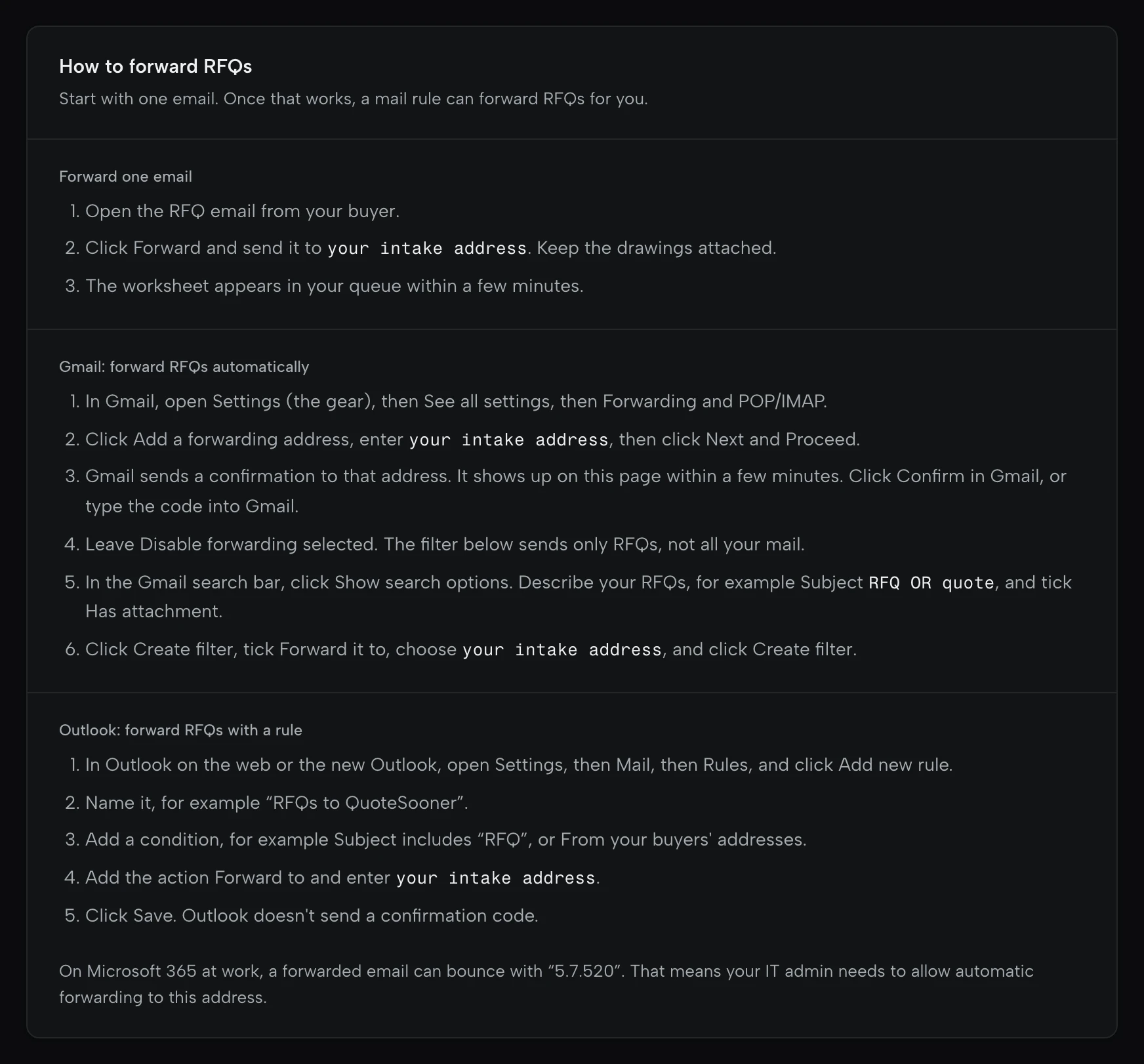
Forward the buyer’s email.
Shop plan
- The buyer
- Nothing changes. They email you the way they always have.
- What lands
- A worksheet with the email’s text and its attachments, in your queue within a few minutes.
- Limits
- 15 attachments and 24 MB per email.
Set it up
- Copy your shop’s intake address from Settings, Intake.
- Forward one RFQ to it and watch the worksheet appear.
- Add a Gmail filter or an Outlook rule that forwards RFQs. Gmail’s confirmation shows up in QuoteSooner with a Confirm in Gmail button.
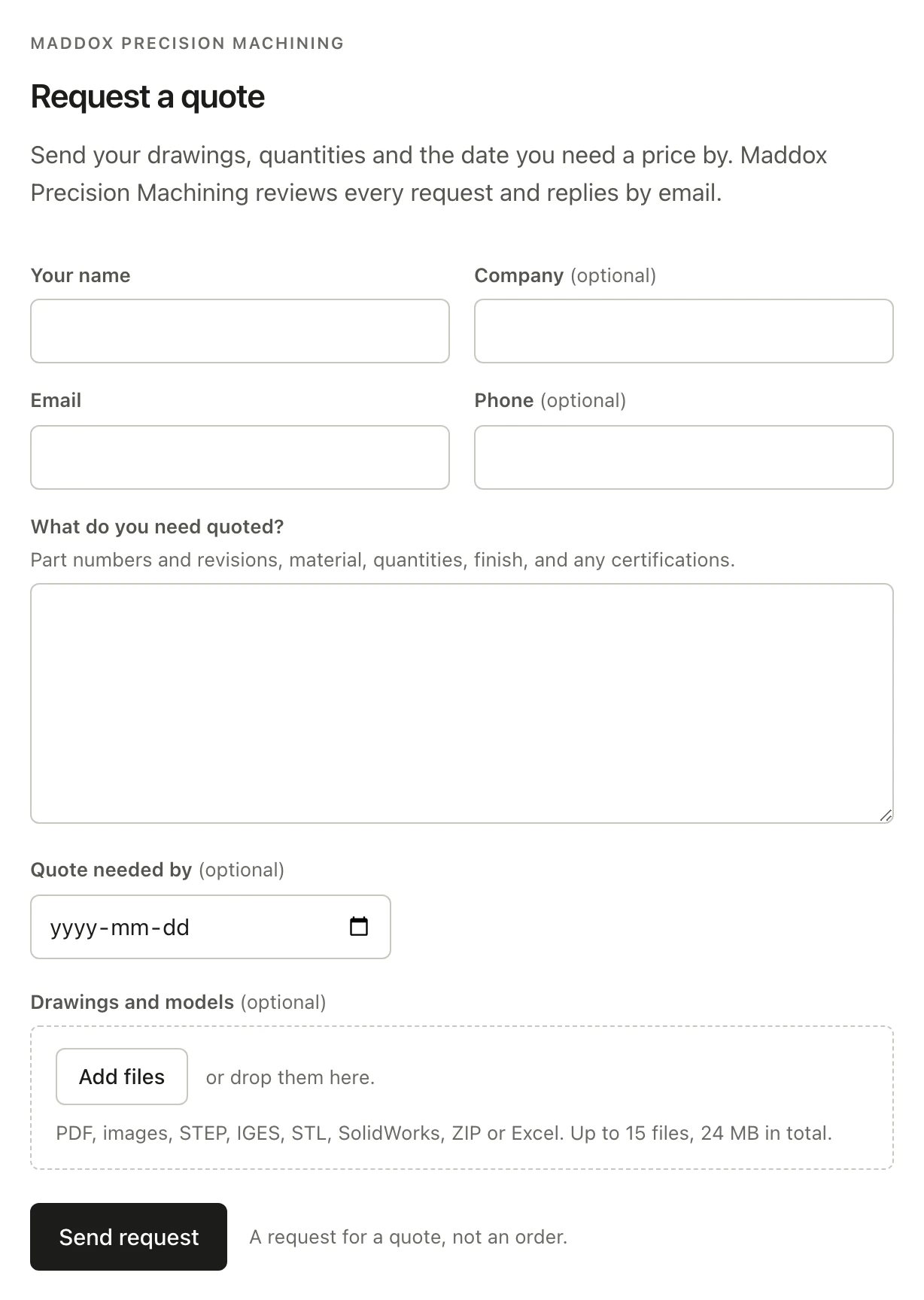
A request form on your website.
- The buyer
- Fills in their name, company, email, what needs quoting and the date they need it by, and attaches drawings. They see your shop’s name, never a price, and get a reference.
- What lands
- The same worksheet a forwarded email makes.
- Limits
- PDF, images, STEP, IGES, STL, SolidWorks, ZIP or Excel; up to 15 files and 24 MB.
- Spam
- A hidden trap field, a minimum time to fill in, and a limit per network each hour.
Set it up
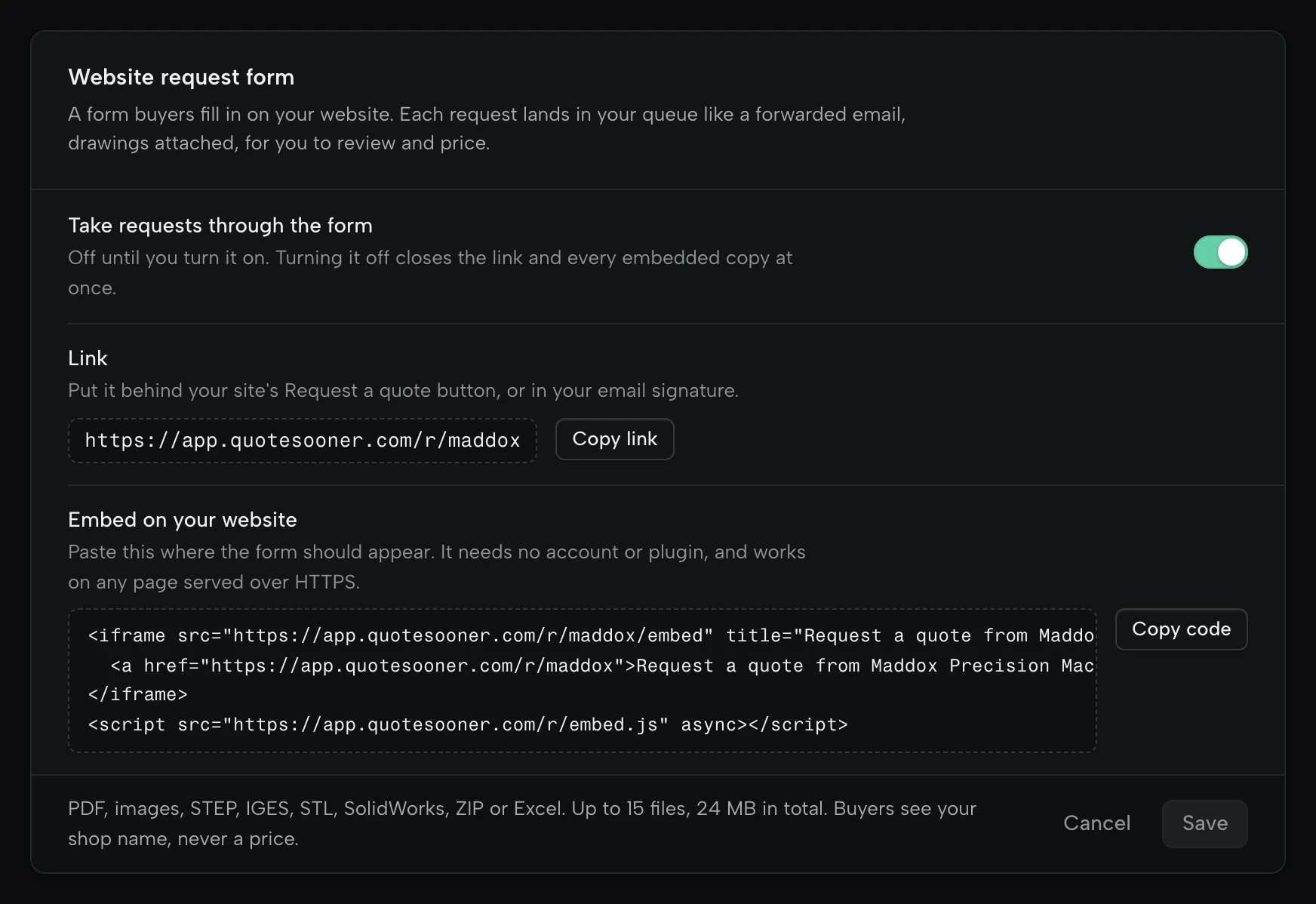
- Turn on “Take requests through the form” in Settings, Intake.
- Copy the link for your site’s Request a quote button or your email signature.
- Or copy the code and paste it into any page on your site. No account or plugin needed.
Drop the files in.
- You
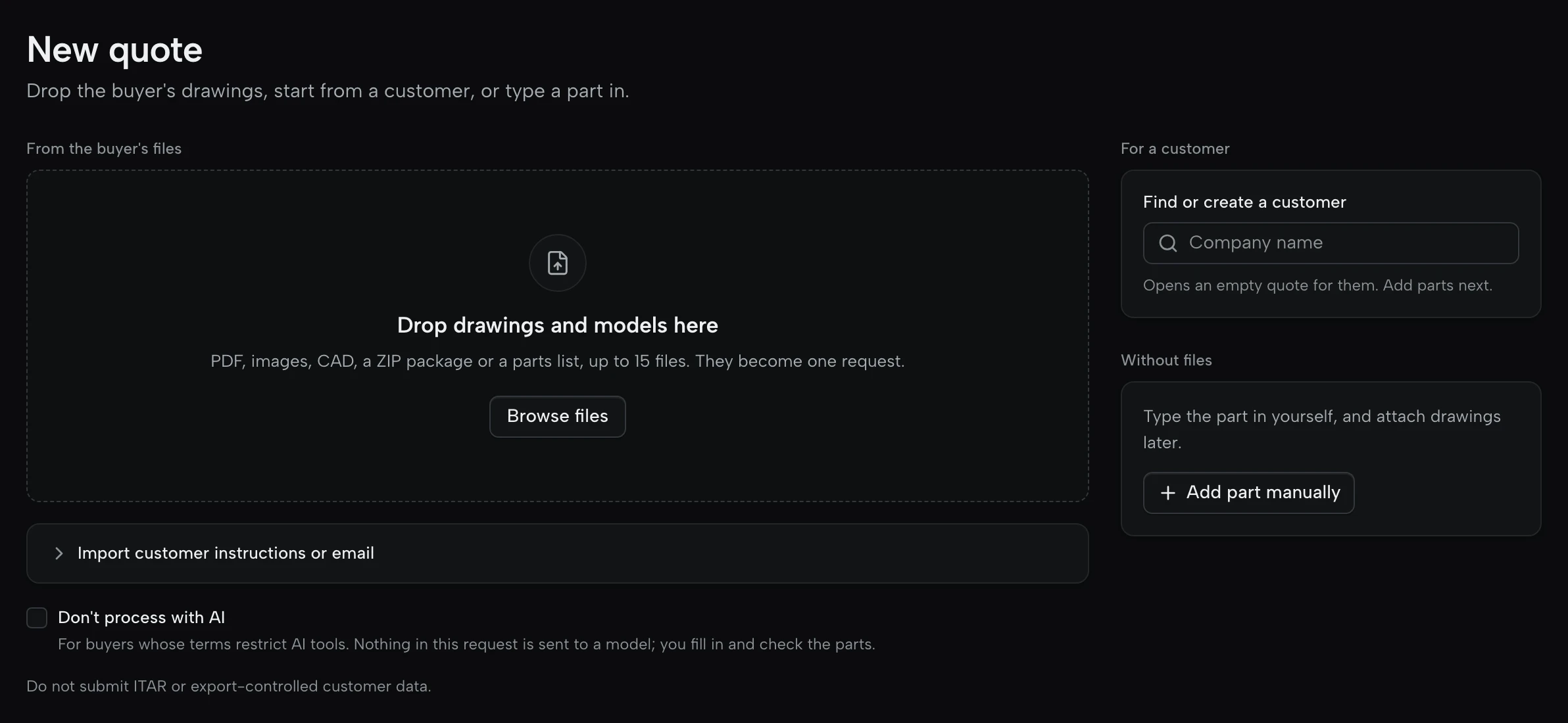
- Drag the drawings, models, a ZIP or a parts list into New quote, or straight onto the queue.
- What lands
- One request with every file attached, read together.
- Limits
- Up to 15 files, 1,000 MB a file and 2,000 MB a request.
Or start without files
- Find or create the customer and open an empty quote for them.
- Or add a part by hand and attach drawings later.
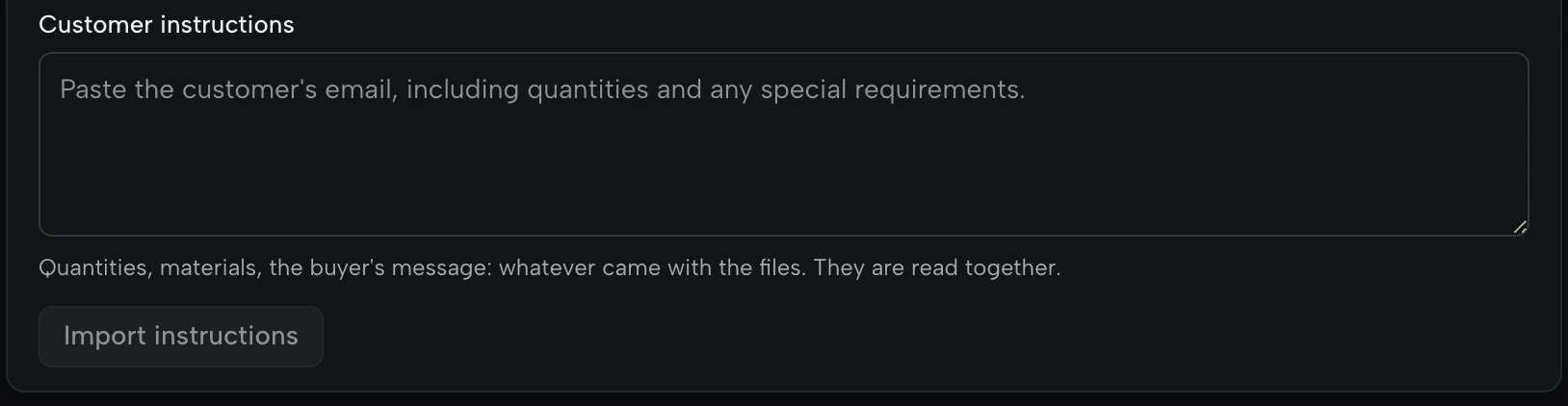
Paste the text.
- You
- Paste the buyer’s message: quantities, material and any special requirements. Files are optional.
- What lands
- A worksheet read from the text, ready for drawings when they come.
When it helps
- A request that came by phone or text message.
- An email you’d rather not forward.
What every request goes through.
Whichever way it came, before anyone prices it.
- ZIP files open
- Up to 50 files and 100 MB inside, so a buyer’s package arrives as its parts.
- Parts lists are read
- An Excel or CSV list is read line by line, up to 100 lines.
- Every file is scanned
- For malware, before anyone opens it. An infected file is quarantined.
- Mail that isn’t an RFQ is set aside
- Spam is dropped, and a newsletter becomes a row marked “This doesn’t look like an RFQ.” A known customer is never set aside.
- The same email twice is filed once
- A second copy of a forwarded email doesn’t make a second request.
- Repeat parts open with their history
- The same customer, part number and revision opens with what you charged last time. A changed file on the same revision is called out.
- Export-controlled requests are held
- A request marked ITAR, EAR, USML or 22 CFR is held before the AI or a preview touches it, and the buyer isn’t acknowledged. Only the owner can release or delete it.
- AI can stay out of it
- Turn AI off for one request or for every request from a customer, and nothing in it goes to a model.
Questions about intake.
Inboxes, buyers, plans. AI and customer data
Does QuoteSooner read my inbox?
No. You forward the RFQs you choose, or set a rule that does. Connecting Gmail or Outlook on Shop only asks to send quotes from your address.
Do my buyers have to do anything differently?
No. They keep emailing you. The request form is there for buyers who find you on your website.
Do requests from the form count toward Free’s 5?
Yes. Every production request counts, however it arrives. Over 5 in a month, requests still arrive and are kept.
Which plan has the forwarding address?
Shop. On Free, drop the files in, paste the text, or take requests through the form.
Quote the next RFQ in your inbox.
Start on the sample request. No card, no customer drawings needed.